Everything you need, one clear step at a time
You don't need to be a tech person to run your masjid's page well. This guide walks through every part of Manage in plain language — no jargon, nothing assumed, and every section below explains not just what a setting does, but why it matters and what to actually do with it.
Before you start: is your masjid already in the directory?
Search the Masjids directory by name or city first. If it's already there but nobody has claimed it yet, don't register a duplicate — open that listing and use Claim This Masjid instead. You'll submit a short note explaining your connection to it (imam, board member, etc.), a Super Admin reviews the claim, and once approved you get the exact same full Manage access described below — just without creating a second, competing listing for the same masjid.
Quick Start
Follow these six steps in order to get your masjid fully set up and visible to your community.
Register your masjid
From the Masjids page, click "Register Your Masjid" and fill in the basics — name, full street address, city, state/province, postal code, country, and a contact number or email. This takes about two minutes. Double-check the address before submitting: once approved, these identity fields lock (see step 2 and the FAQ below), so it's worth getting right the first time rather than requesting a correction later.
Wait for approval
A Waqfly Super Admin reviews every new registration by hand, usually within a day or two, to keep the directory accurate and free of duplicates. You'll see your masjid's status — Pending, Approved, or (rarely) a note asking for clarification — right on your Dashboard while you wait. Nothing else in this guide is usable until approval comes through, since Manage only opens up for an approved masjid.
Complete your masjid profile
Once approved, head to Manage → Info to add your timezone, contact number, email, and website. Your timezone especially matters — it's what makes prayer times calculate correctly and what makes your TV Display and Lobby Kiosk correctly highlight the current prayer for people actually standing in your building, not wherever the server happens to be.
Set your prayer & Iqama times
Go to Manage → Iqama Times. The Adhan (start) times are calculated for you automatically from your masjid's exact location — you never type them in; just pick the calculation method your masjid follows and, if a prayer is a few minutes off from what you announce, nudge it earlier or later. Then set your Iqama (start of congregation) time for each of the five daily prayers: choose Fixed for the same clock time every day, or Auto to follow the Adhan plus a set number of minutes. Add your Jumu'ah sessions too — these are the times your community actually shows up for, distinct from the calculated prayer time itself.
Add photos and a description
Manage → Photos and Manage → Design let you upload real photos of your masjid — the exterior so people can recognize the building, the prayer hall so it feels welcoming, a community event so it feels alive — and write a short "About" section in Design. This is often the first thing a newcomer reads before ever walking through your doors, so a few real photos and two or three honest sentences go a long way.
You're live!
Your masjid now shows up in the public directory, on the map, and in "Near Me" search results. From here, nothing below needs to happen all at once — explore Donations when you're ready to accept online giving, TV Display if you have a screen in the prayer hall, and the Lobby Kiosk if you'd like a tablet at the entrance. Come back to this guide any time; every section stays exactly where you left it.
The Full Guide
Organized the same way as your Manage sidebar — tap a section to expand it.
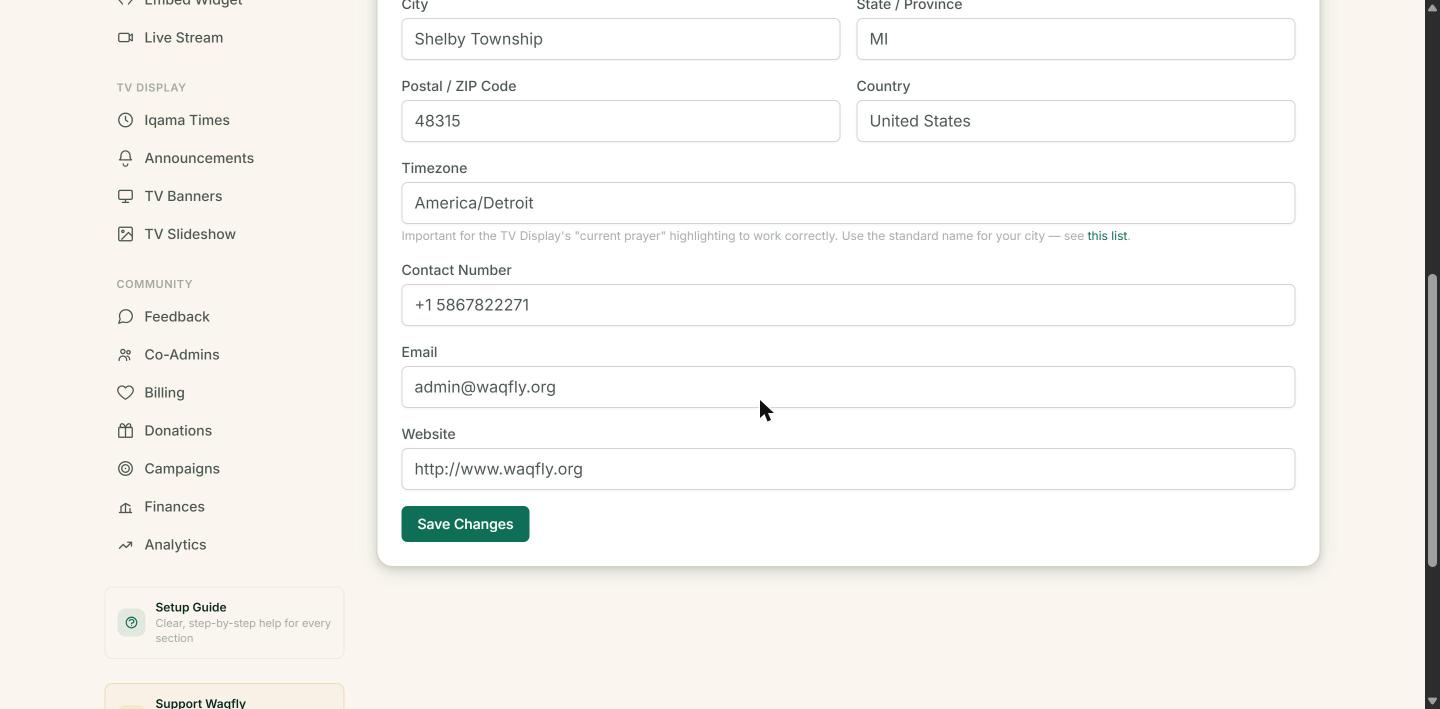
Your masjid's core details — name, address, city, contact number, email, website, and timezone. Once approved, the identity fields (name, address, city, state, postal code, country) lock for public trust and duplicate-prevention reasons — this stops anyone, including a well-meaning admin, from quietly moving a well-known masjid to a different address. Need one changed anyway (a genuine typo, a street renamed by the city, a real relocation)? Use the "Request a Change" form right there on the Info page — write a short, specific reason, and a Super Admin reviews it, usually within a day or two. Everything else on this page — phone, email, website, timezone — stays fully yours to edit any time, no approval needed.
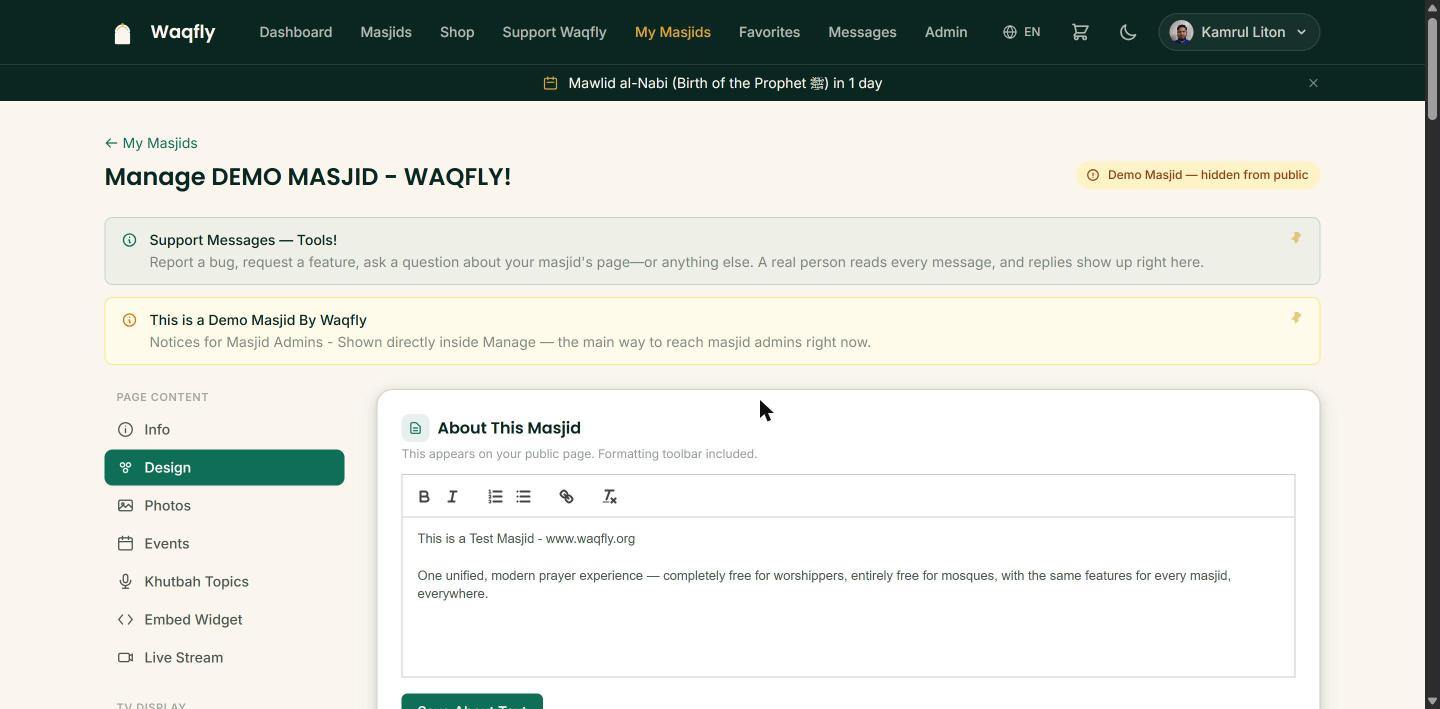
Choose an accent color that shows up across your public page (buttons, highlights, the TV Display) and write a description in the "About" box that appears near the top of your profile. This is what gives your masjid page its own identity rather than looking identical to every other listing in the directory. A good description is usually two to four sentences: when the masjid was founded, what makes it distinctive, and a warm line inviting newcomers. Further down the same page you will also find: TV Screen Badge (show your logo and name together, or logo only if your name is very long), Time Format (12-hour or 24-hour on your TV screens), TV Screen Orientation (switch to Portrait if your TV is mounted vertically), and Wall Adhan Display — Voice, where you choose which Adhan voice plays, for which of the five prayers, and then copy the link, scan the QR code, or share it by WhatsApp or text to open the Wall Adhan Display on any screen or tablet.
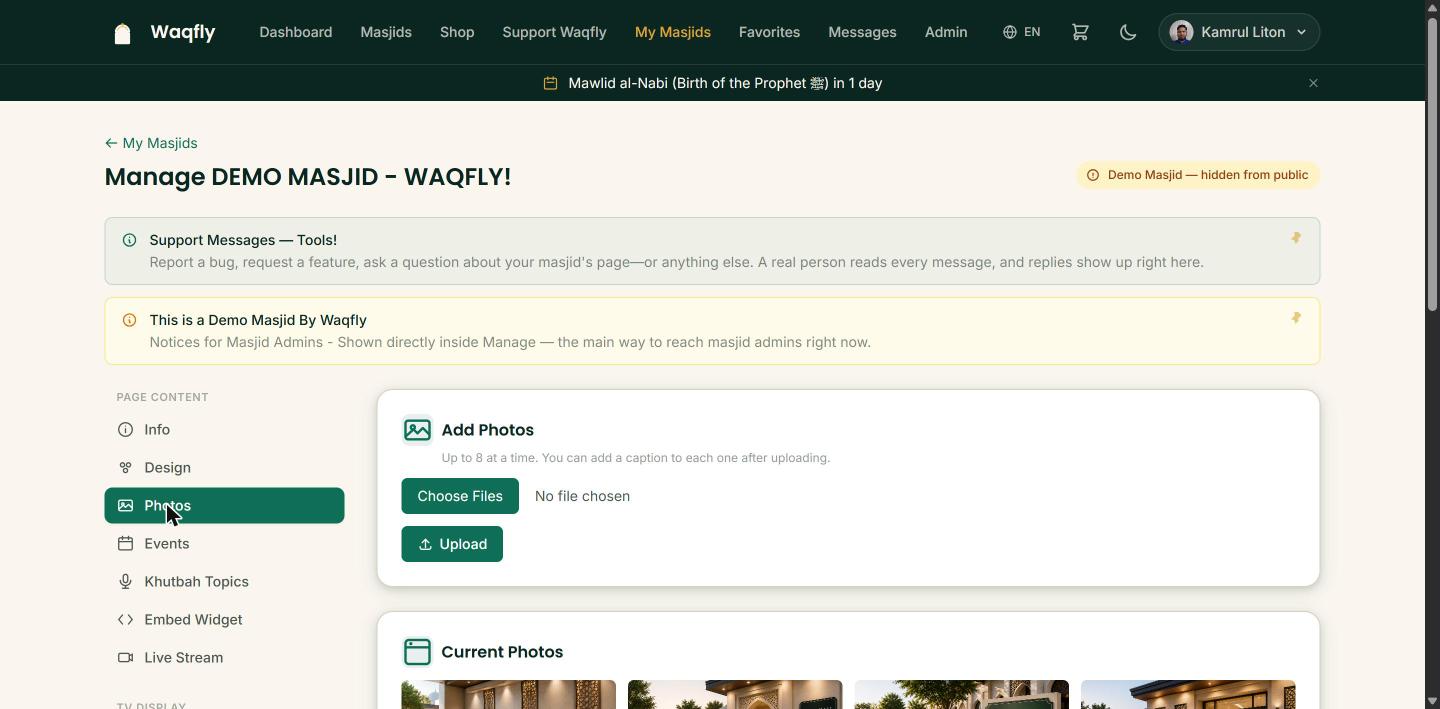
Upload real photos — the exterior (so people recognize the building when they arrive), the prayer hall (so it feels welcoming before anyone steps inside), and a community event (so the page feels alive, not just a directory entry). Add a short caption to each photo; captions aren't just for other admins scanning the list quickly, they genuinely help screen-reader users on your public page understand what they're looking at. Aim for at least three to five photos — a page with zero photos is one of the first things a visitor notices is missing.
Add anything happening at your masjid — a fundraiser dinner, a guest khatib, a children's class, an Eid prayer with a specific time and location. Include a real start time and, if it applies, a way to RSVP or volunteer. Anyone who has favorited your masjid gets notified automatically when you post something new, so this reaches people even if they don't check your page every day — post the event as soon as the date is confirmed rather than waiting until closer to the day, so that notification actually gives people time to plan.
List upcoming Friday khutbah topics and the speaker for each. Genuinely helpful for community members deciding which Jumu'ah to attend, especially at masjids with more than one khatib or more than one Jumu'ah time — someone can check the topic before choosing which time slot to join.
Already have your own masjid website outside Waqfly? This page gives you a small snippet of HTML/JavaScript code that shows your live prayer times — Adhan, Iqamah, Jumu'ah, and a link to your monthly PDF calendar — right on that site too. Visitors can swipe or tap the dots to see today and the next six days. Set your times once here in Manage → Iqama Times, and both places — your Waqfly page and your own website — stay in sync automatically; you never have to update the same times in two places.
Paste your YouTube or Facebook Live link here whenever you're streaming a khutbah or event, and a "Watch Live" button appears automatically on your public page for anyone who can't attend in person — elderly community members, people traveling, anyone unwell. Remove or replace the link once the stream ends so the button doesn't point at a finished broadcast.
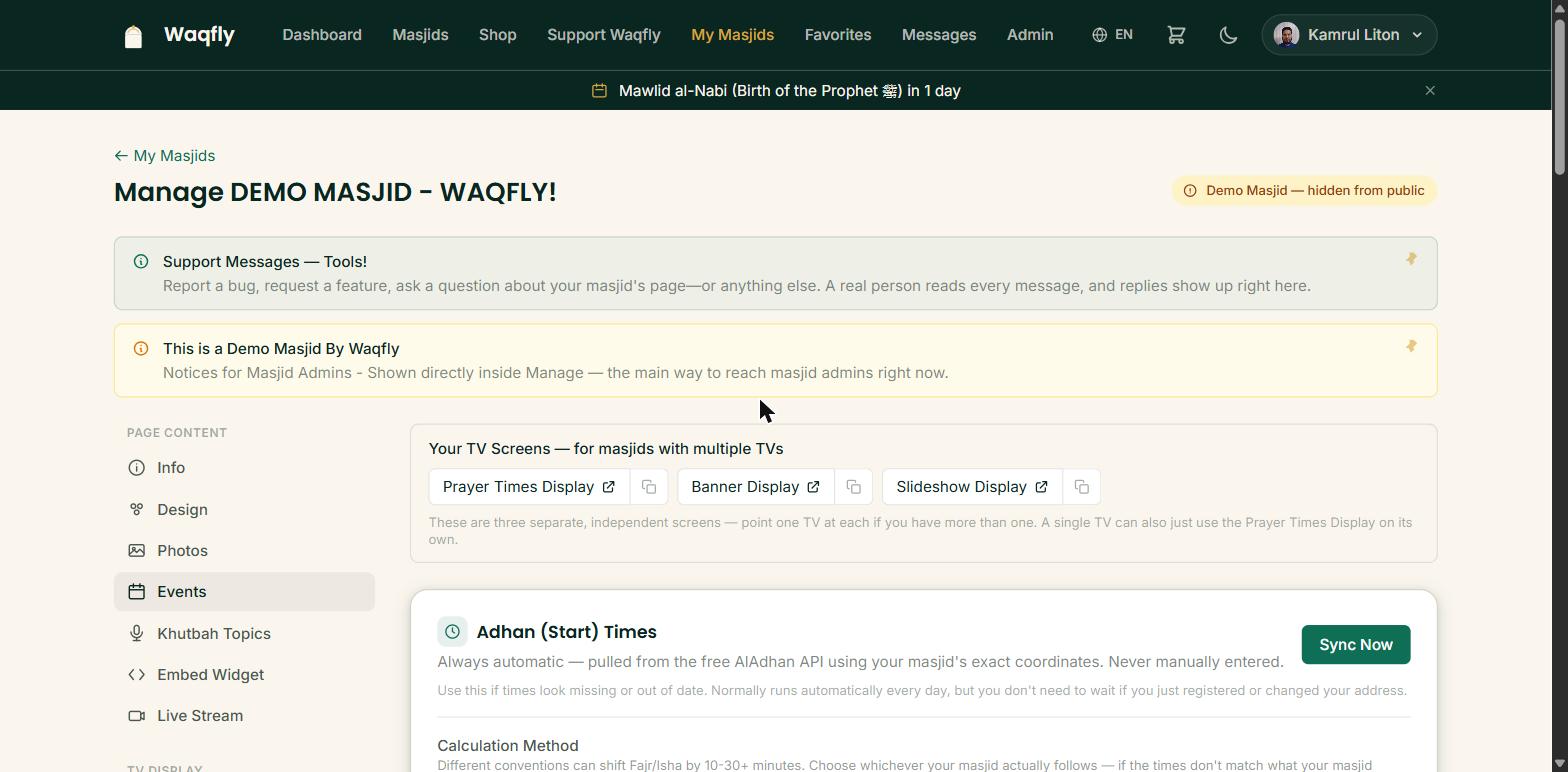
The heart of your TV Display and Lobby Kiosk (see Quick Start step 4). Adhan (start) times are always automatic — calculated from your masjid's exact location, never typed in. If they look a few minutes off from what your masjid announces, the usual cause is the Calculation Method (different conventions can shift Fajr and Isha by 10–30 minutes), so try that first; Adhan Fine-Tuning then lets you nudge any prayer earlier or later by a few minutes, and Sync Now refreshes the times straight away after you register or change your address. For each prayer's Iqama you choose Fixed (the same clock time every day) or Auto (the Adhan plus a set number of minutes, so it follows the seasons by itself). Jumu'ah is set separately — up to three sessions, each with a start time and an Iqamah time, plus a switch to hide the Jumu'ah Iqamah time if you don't publish one. You can also schedule a future change in advance — for example "Isha Iqama moves to 9:00 PM starting next Monday" — and it switches over automatically on that date, with an announcement generated for you so your community sees the change coming rather than being surprised by it at the masjid. The "Silence Your Phone" reminder screen is set up on this same tab.
Short scrolling notices that appear on your TV screen — a reminder about parking, an urgent closure, a thank-you to a donor. These are separate from Events, meant for quick day-to-day messages rather than full listings with dates and RSVPs. Keep each one to a sentence or two; it needs to be readable at a glance from across the prayer hall.
Rotating full-screen slides for your TV Display — a Jumu'ah reminder, upcoming Eid schedule, or a sponsor acknowledgment. Add as many as you like; they cycle automatically on a timer so there's no button to press during prayer. Good for anything that benefits from a bigger, image-style presentation rather than scrolling text.
A separate, richer screen — with its own dedicated web address, so you can run it on a second TV if you have one — built for photos and QR codes rather than text. Useful for a lobby display showing community photos, a donation QR code people can scan on their way in or out, or event flyers shown as full images. If you only have one screen, TV Display (Iqama times + Banners + Announcements) is the one to start with; add the Slideshow later if a second screen becomes available.
One combined screen for a single TV: a rotating photo panel on one side, with your prayer times, sunrise and sunset, and Jumu'ah times always visible on the other, and a welcome message along the bottom. Add a handful of photos and type your welcome message (for example "Welcome — please silence your phone during prayer"); a long message can scroll across the screen instead of being cut off. Leave the message blank and it simply shows a greeting with your masjid's name. If you want captions or QR codes on your photos, use TV Slideshow instead.
Only have one physical TV? Point it at TV Rotation instead of any single screen. It cycles automatically through the screens you tick — Prayer Times, Banners, Slideshow, Smart TV, and Phone Silence — each for the number of seconds you choose, and every screen keeps updating live while it is showing. Turn on "Pause rotation during Iqamah times" (recommended) so the display holds on one chosen screen around each Iqamah, Jumu'ah included on Fridays, instead of switching just as prayer starts, then picks back up by itself afterward.
A screen for your front entrance or any other public-facing spot: a full-screen rotating photo backdrop with no prayer times — just a warm first impression for anyone walking in. Add a few photos of the masjid or your community. Until you add a photo it shows a simple branded background with the heading and message you write (for example "Welcome to Masjid Al-Noor"); once you have at least one photo, the photos replace that text.
A separate, full-screen touch interface meant to run unattended on a tablet mounted at your entrance or lobby — distinct from the TV Display, which is meant to be watched rather than touched. A visitor taps through Home, Prayer Times, Events, or Donate screens themselves. There isn't a button for this inside Manage yet — open it directly by visiting your masjid's own address with /kiosk added to the end (for example, waqfly.org/masjids/your-masjid-slug/kiosk), then use your tablet's "guided access" or "kiosk mode" setting so a visitor can't back out into the tablet's home screen. It reuses the same prayer/Iqama times you already set above, so there's nothing extra to configure.
See what your community is saying — star ratings and written comments submitted through your public page. A genuinely useful, low-pressure way to hear what's working and what isn't, without anyone having to track you down in person to say it. Unread feedback shows a small count badge next to this tab in your sidebar, so it's easy to tell at a glance when something new has come in.
Running a masjid is rarely a one-person job. Add trusted people here — an imam, a secretary, a board member — so more than one person can help keep events, photos, and prayer times current without everyone sharing a single login (which also means nobody loses access if one person's account has an issue, and you can always see who added or changed what).
Nothing to actually do here — Waqfly is free for every masjid, forever, no exceptions, no hidden tier. This page exists mainly so you can see that confirmed in writing, in case anyone on your board ever asks "wait, are we being charged for this?"
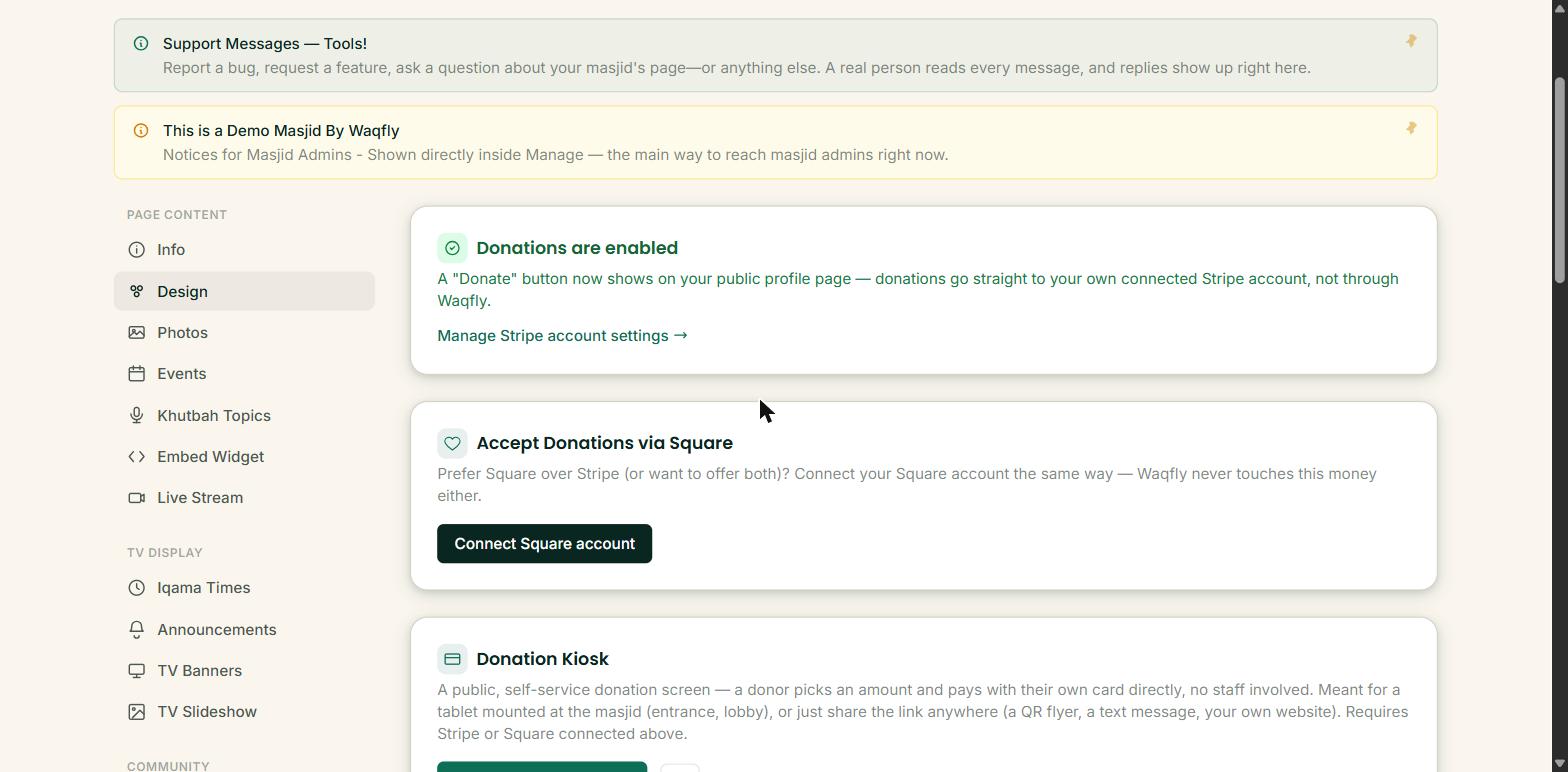
Set up how your masjid accepts donations two ways, and you can use either or both together: a real payment processor (Stripe or Square) that lets donors pay online by card, or simple manual instructions (Zelle, Venmo, a mailing address) if you'd rather not set up online payments yet. Once a processor is connected, this page also gives you a Donation Kiosk — a public, self-service link where a donor picks an amount and pays with their own card directly, no staff involved. It's built for a tablet mounted at your entrance, but the link works anywhere: on a QR flyer, in a text message, on your own website. It's safe to share widely — anyone with the link can only give money through it, never see or manage your actual donations.
Running a specific fundraiser — a Ramadan appeal, a building expansion, a relief drive — gets its own goal amount and progress bar here, kept separate from general day-to-day donations, so supporters can see exactly how close you are to the target and feel the momentum as it fills up.
Track fund balances by category (General, Building, Zakat, etc.) alongside what's actually been spent from each — the same permanent, transparent record-keeping approach used for Waqfly's own platform-level finances. Genuinely useful when someone on your board or in your community asks "where did the fundraiser money actually go?" and you want a clear, honest, dated answer rather than a guess.
A simple view of how many people are visiting your masjid's public page over time. Not required reading day to day, but a good gut-check on whether recent changes — a new photo set, an event push, a social media share — actually reached people, or whether your page could use more visibility.
Common Questions
Quick answers to the things that come up most.
Not necessarily. Every new registration is reviewed by a Super Admin before going public, which usually takes a day or two. If it's been longer than that, reach out through Support Messages with your masjid's name and someone will look into it directly.
Once approved, a few identity fields (name, address, city, state, postal code, country) lock to protect public trust and prevent duplicate listings. You can still request a change — just fill in the "Request a Change" form right on the Info page, with a short, specific reason, and a Super Admin will review it, usually within a day or two.
Open that masjid's public page and look for "Claim This Masjid." Submit a short note (at least a couple sentences) explaining your connection — imam, board member, office staff — and a Super Admin reviews the request. Once approved, you get the exact same full Manage access as anyone who registered a masjid from scratch. Don't create a second listing for a masjid that already exists; that just makes duplicates a Super Admin then has to clean up.
Yes — add anyone you trust as a Co-Admin from Manage → Co-Admins. They get their own login and the same access you have, without needing to share a single password, and everyone's changes are still tracked to the person who made them.
No. Waqfly is free for every masjid, forever — no trial period, no premium tier, no catch. If you'd like to support the platform itself, there's a separate, entirely optional "Support Waqfly" donation, but it's never required to use any feature, including the payment-processor-based Donations tools.
Most things (prayer times, events, photos, announcements) can just be edited or deleted again right away, no consequences. A few areas — like your Financial Ledger — are designed so a mistake gets corrected on the record rather than erased outright, which is standard practice for anything involving money and keeps a clear, honest trail.
The TV screens (Iqama Times, Announcements, TV Banners, TV Slideshow, Smart TV Display, Welcome Display, and TV Rotation) are meant to be watched, not touched — a screen mounted where people can glance at it. The Lobby Kiosk is a touch interface for a tablet, meant for a visitor to actively tap through — checking prayer times, browsing events, or donating themselves. Many masjids use both: a TV in the prayer hall, and a tablet at the entrance.
Use TV Rotation. It cycles through whichever screens you choose, each for as long as you set, and can pause on one screen around each Iqamah time so nothing switches while people are praying. If you would rather keep it simple, Smart TV Display puts photos, prayer times and a welcome message all on one screen.
Open Manage → Iqama Times. First check the Calculation Method, since different conventions can move Fajr and Isha by 10–30 minutes. If it is only a few minutes off after that, use Adhan Fine-Tuning to nudge that prayer earlier or later. Your Iqama times are separate and always yours to set: Fixed for the same time every day, or Auto to follow the Adhan.
Anyone can install the free Waqfly Adhan app from the Apps page, choose your masjid, and turn on Adhan alerts. The times come from what you already set in Manage, so there is nothing extra for you to configure — and when you update your times, their alerts follow.
Use Support Messages (in the main menu) to reach the Waqfly team directly — it's a real two-way conversation with a person, not a ticket into a void.
Still not sure about something?
No question is too small — Support Messages goes straight to a real person on the Waqfly team.
Message the Waqfly Team